

Short answer: Give each day its own note with a clear date title, so search and links can find it. Tag the notes #journal and make today's note one tap away. A shortcut can create a whole year of journal notes for you.
One note per day, or one long note?
One long journal note gets slow and hard to search after a few months. One note per day stays fast, and every day has its own title you can search for and link to.
A simple setup
- Title each note with the date, for example "27 November". The first line of a note is its title.
- Add a tag like #journal, so all entries are easy to gather.
- Make a Smart Folder for that tag. On iPhone and iPad: Folders view, New Folder icon, New Smart Folder. On a Mac: File > New Smart Folder.
- Make today's note one tap away. In the Shortcuts app, a shortcut with the actions Find Notes and Open Note can open the note with today's title. Put it on your Home Screen or Lock Screen.
Where Forever ✱ Notes fits
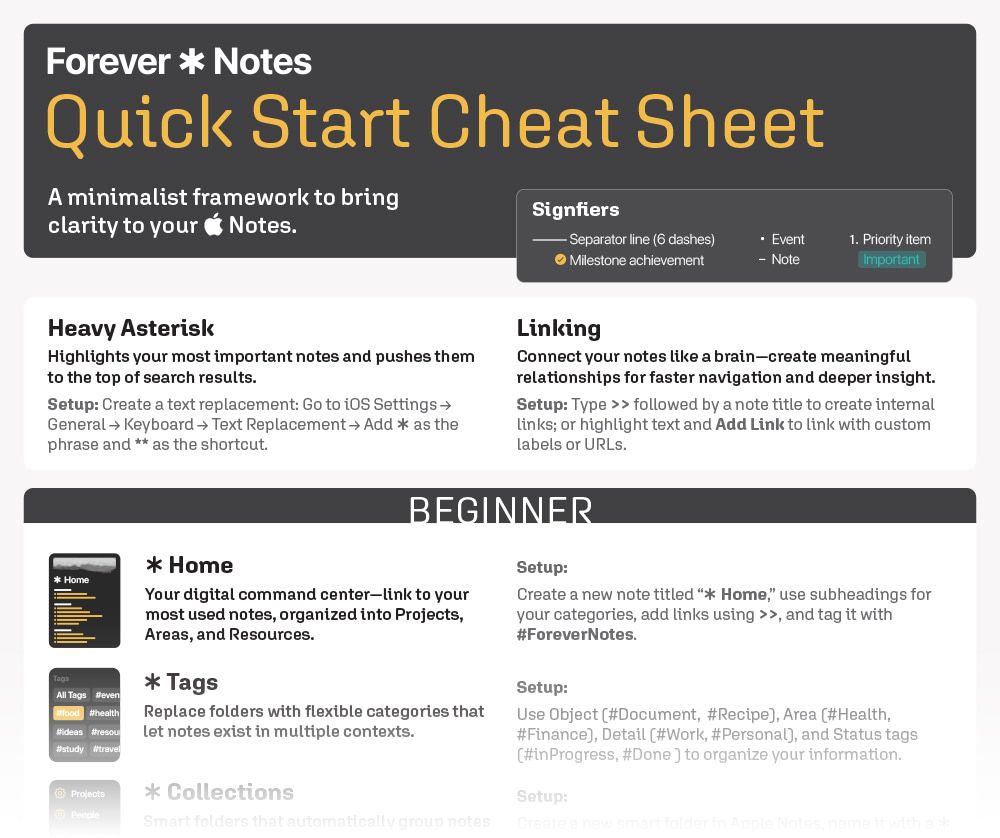
The ✱ Journal in Forever ✱ Notes does this for the whole year. The free Create ✱ Journal Notes shortcut creates one Year note, four Quarter notes, twelve Month notes and 366 Day notes in your default folder, all tagged. The Open Today's Note shortcut opens today's entry in one tap. Day notes are for quick capture, Month and Quarter notes for goals and reflection, and the Year note for your highlights. Linking the notes together is a step you do yourself, a few at a time, because Apple Shortcuts can't create note links yet. Prefer weeks? The ✱ Weekly Notes extension adds them.