

Short answer: No. Apple Notes has no built-in templates. The simple workaround is a template note you duplicate each time. For notes you create often, a shortcut can make them with the right title and text in one tap.
Workaround 1: duplicate a template note
- Write the note once the way you want every copy to look, for example a meeting note with headings for Attendees, Notes and Next steps.
- Tag it #template so you can always find it. A Smart Folder for #template keeps all your templates in one list.
- Duplicate it when you need it. On iPhone and iPad, touch and hold the note in the notes list and choose Duplicate Note. On a Mac, select the note and press Command-D.
- Change the first line. The first line of a note is its title, so give each copy its own.
Workaround 2: a shortcut
For notes you make often, the Shortcuts app is faster. Its Create Note action makes a new note with any text you give it, including today's date in the title. Put the shortcut on your Home Screen or Lock Screen, and a ready-made note is one tap away.
Where Forever ✱ Notes fits
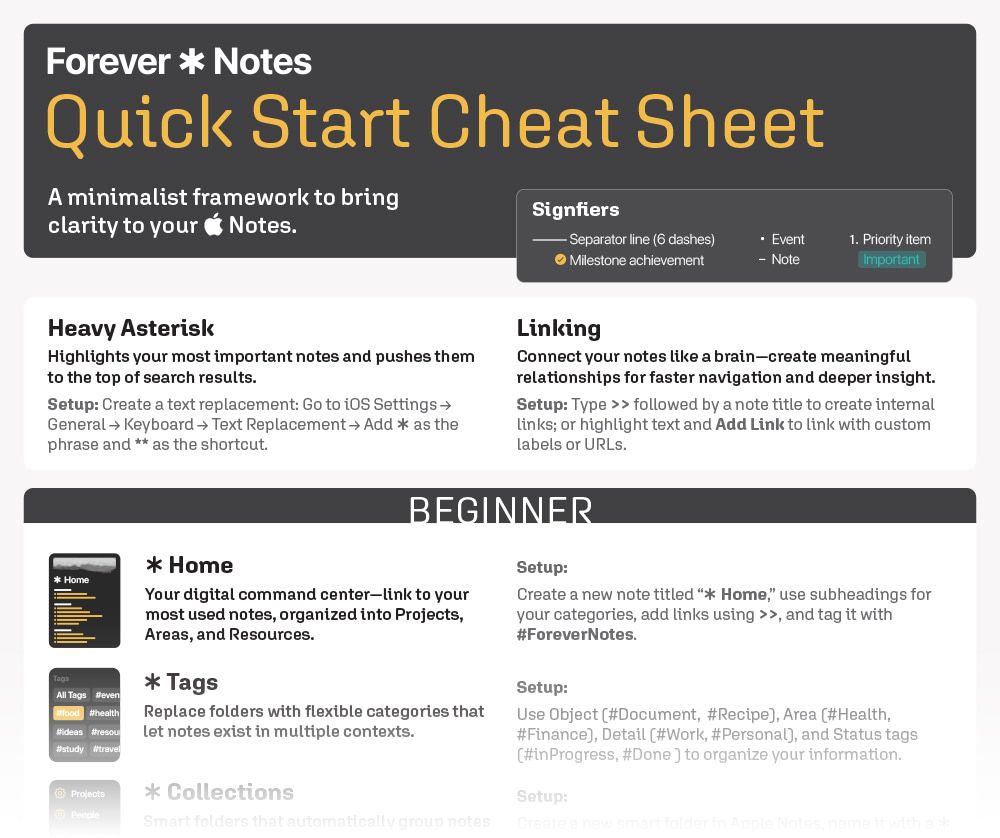
Forever ✱ Notes is built on this idea. Free shortcuts create the notes for you, so you never set them up by hand: the Create ✱ Home Note shortcut makes your ✱ Home note, and the Create ✱ Journal Notes shortcut makes a whole year of ✱ Journal notes. You'll find more shortcuts and templates in the Resources.