





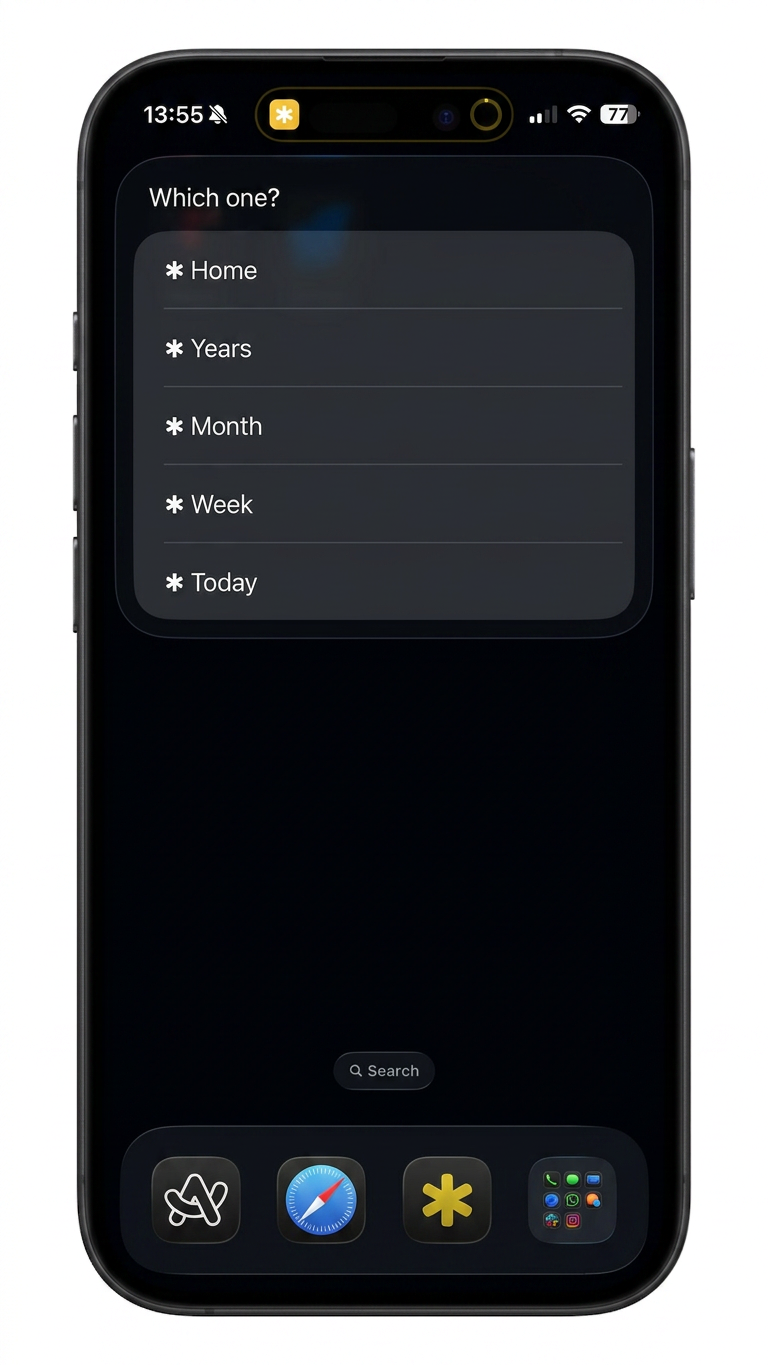
The whole point of shortcuts in Forever ✱ Notes is that your notes are one tap away, from anywhere. The Universal Menu takes that further: one tap opens a menu that reaches everything. Your home, your journal, your week: all from a single spot on your home screen or dock.
Once you've set up the full framework: your ✱ Home note, the ✱ Journal with daily and monthly notes, and the ✱ Weekly Notes extension, you'll have a small collection of shortcuts that make the whole system fast to navigate. Open ✱ Home Note. Open Today's Note. Open Current Month Note. Open Current Week Note. Each one is useful, but managing them separately means juggling multiple icons across your home screen, dock, and lock screen.
The Universal Menu replaces all of that with one.
What it is
The Universal Menu is a single shortcut with a built-in menu. When you tap it, five options appear:
- Home — opens your ✱ Home note
- Years — opens your ✱ Years note (your yearly journal note)
- Month — opens your current month note via Open Current Month Note
- Week — opens your current week note via Open Current Week Note
- Today — opens today's note via Open Today's Note
Instead of managing multiple shortcuts across your home screen or dock, you keep one. The others still exist, tucked inside.
Setting it up
Download the shortcut using the link below, then connect your own notes and shortcuts to it. There are five things to link.
Your two notes:
- Your ✱ Home note — a fixed link directly to your Home note
- Your ✱ Years note — a fixed link directly to your yearly journal note
Your three existing shortcuts:
If you've already installed these from the Forever ✱ Notes shortcut collection, you're ready. If not, install them first. You'll find the full set at [myforevernotes.com/shortcuts].
Once everything is linked, the shortcut is ready to use.
Where to add it
A few good spots to place it:
Add it to your iPhone home screen so it's reachable without unlocking. Put it in your dock and it travels with you across every screen. Add it as a lock screen widget and you can open any note without unlocking your phone at all. It runs on Mac too. Add it to your dock there and it works the same way.
Pick the one that fits how you work. Or use all of them.
Why one shortcut instead of five
Having individual shortcuts on your home screen works fine, until you have too many of them. The Universal Menu doesn't replace the individual ones. It wraps them. The individual shortcuts do the actual work of finding or creating your notes; the Universal Menu is just the door you walk through to reach any of them.
This also means the Universal Menu itself almost never needs updating. If you change how your week notes work, you update the Open Current Week Note shortcut, not this one. The menu stays stable; the logic lives elsewhere.
Download
Download the Universal Menu →
After installing, open the shortcut in the Shortcuts app and update the five links to your own notes and shortcuts before using it.

