

In June I wrote that Apple Notes was about to get links to a section inside a note. It shipped in September with iOS 27, iPadOS 27 and macOS 27 and it has changed three small things in how I use Forever ✱ Notes.
What a section link is
Until now, a link in Apple Notes could only open another note, landing at the top of that note. If the thing you wanted was halfway down, you had to scroll.
The new section link opens a note at a specific heading. Tap it, the note opens, the heading sits at the top of the screen with a short (actually very short) highlight so you know where you landed.
There are three ways to create a section link:
The quick way is the one you already know. Type >>, pick the note, then type /. Apple Notes shows the headings in that note. Pick one.
The second way is through the link menu. Select some text, tap the Link icon or tap the arrow in the edit menu, choose Add Link, then Link to Section. On the Mac it is Command-K, then Link to Section. This way lets you link to a section in the note you are in, or in another note, and it lets you keep your own words as the link text.
The third way is to long tap on an existing text link, then Edit Link, then Link to Section.
One thing to remember: the target has to be a real heading: Title, Heading or Subheading from the format menu. Bold text does not count. If you built your Hubs and journal notes the Forever ✱ Notes way, your section headings are already headings, because that is what makes them collapsible.
The / picker shows a maximum of four headings, and if you keep typing after the slash, the menu closes. The way around it is the second or third method. Add or Edit Link, then Link to Section, shows every heading in the note.

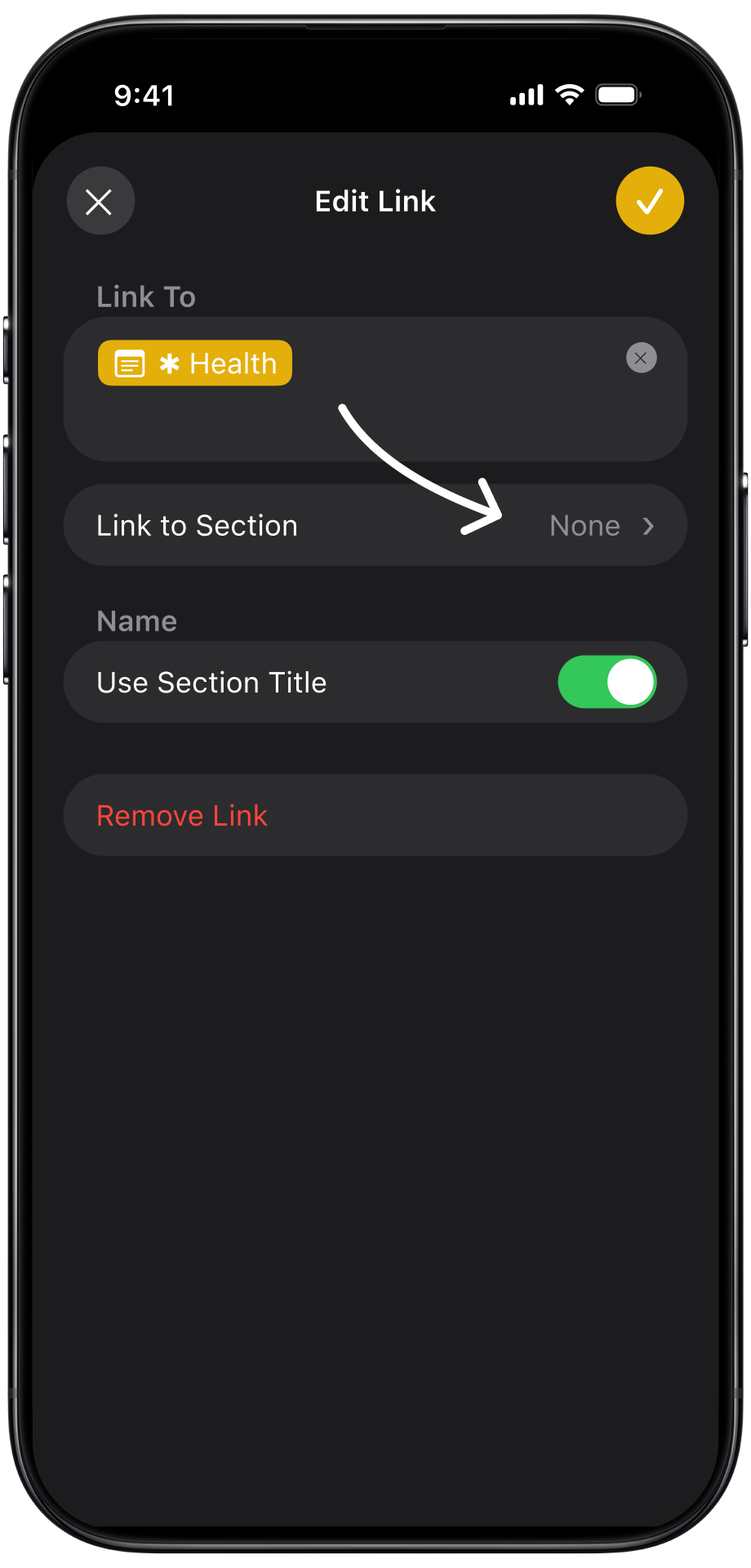


Example 1: ✱ Home links to the section of a ✱ Hub
On ✱ Home, I have a list of ✱ Hubs, including a ✱ Health hub. Nine times out of ten, I tap it and then scroll down to “Doctor Visits,” where I list notes about each doctor visit. With the new section links, I can now tap the link and go directly to the “Doctor Visits” section.
Example 2: event notes link back to the right year
This is probably my favorite use of the new feature so far.
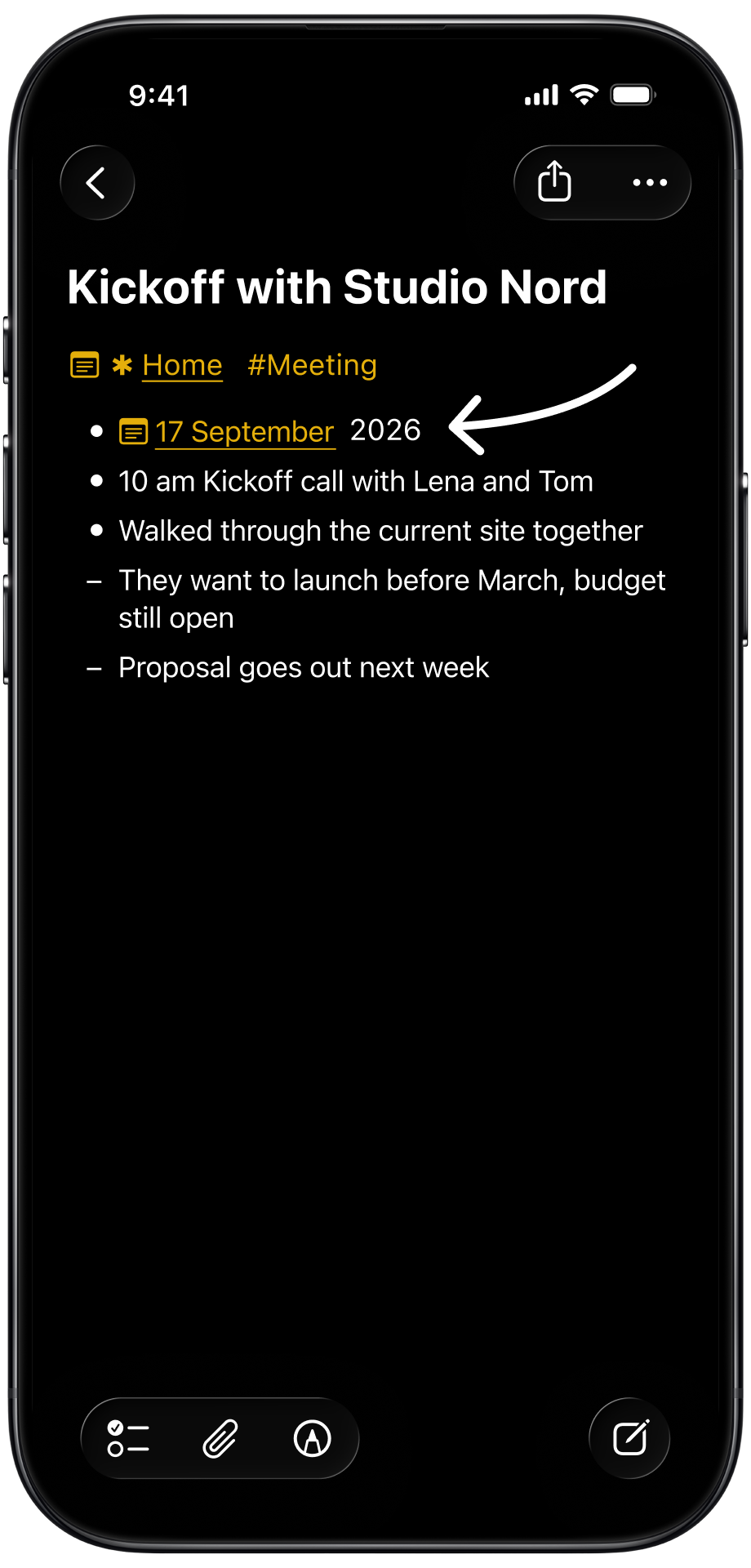
If you run the ✱ Journal, you know that a Daily note is reused every year. 17 September holds 2026 at the top, then 2025 below it, then 2024, each year under its own heading. The note grows down, one section per year.
When something on a day deserves its own note, a meeting for example, I create that note from inside the Daily note. In today's block I type >>, type the title, and pick the option to create a new note with that title.
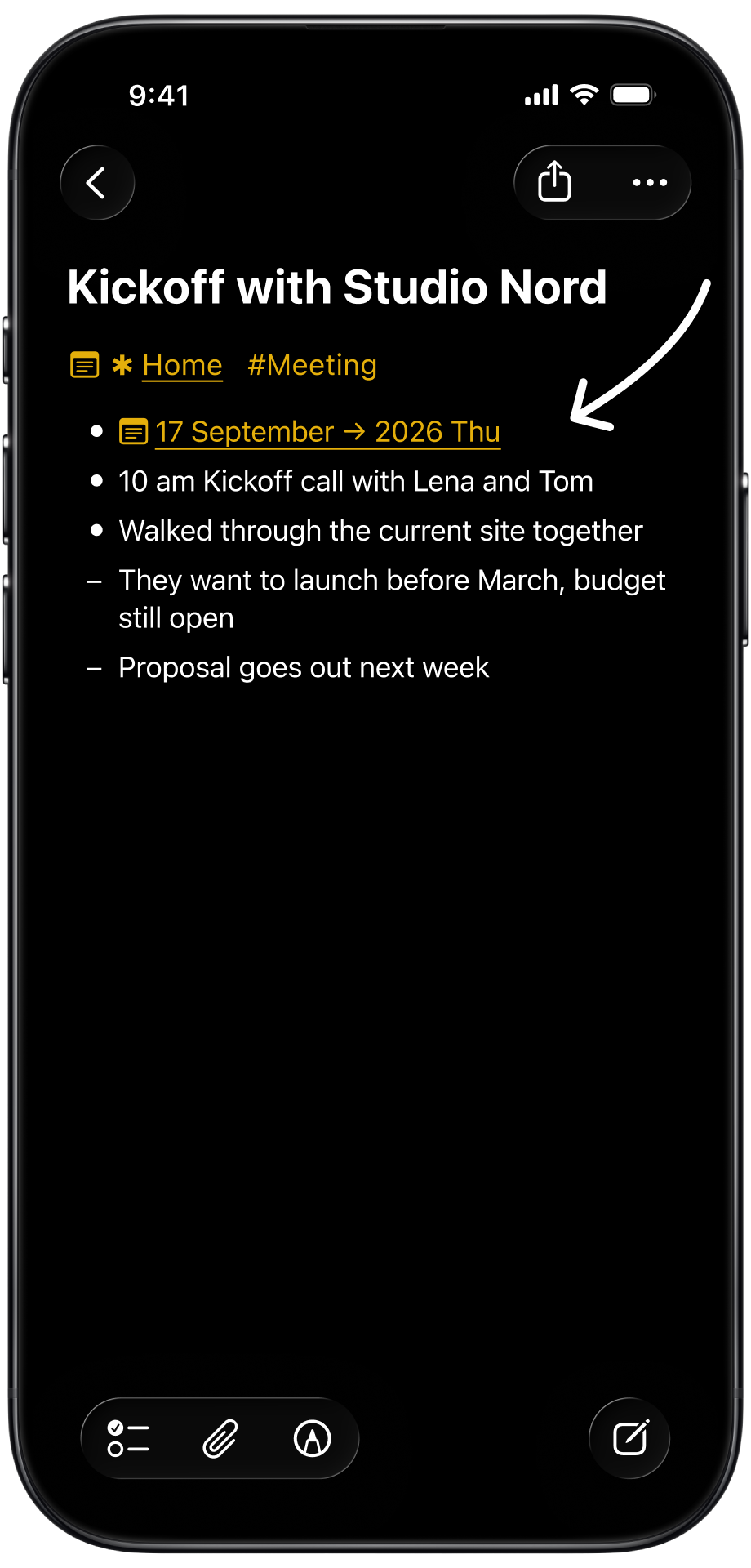
The link is in my day, the note exists, I open it, add the tag #Meeting, and add the backlink to the day.
That backlink was always a little wrong. It pointed at 17 September, which is every 17th of September I have ever had. I used to type the year next to it as plain text so I would know which block it belonged to. It worked. It was not a link.
Now the backlink is 17 September, then /, then the 2026 block. Open the meeting note, tap the backlink, and you land in the right year of the right day. Two years from now, when that Daily note has three more blocks on top, the link still lands where the note was linked.
Example 3: Table of contents on a long note
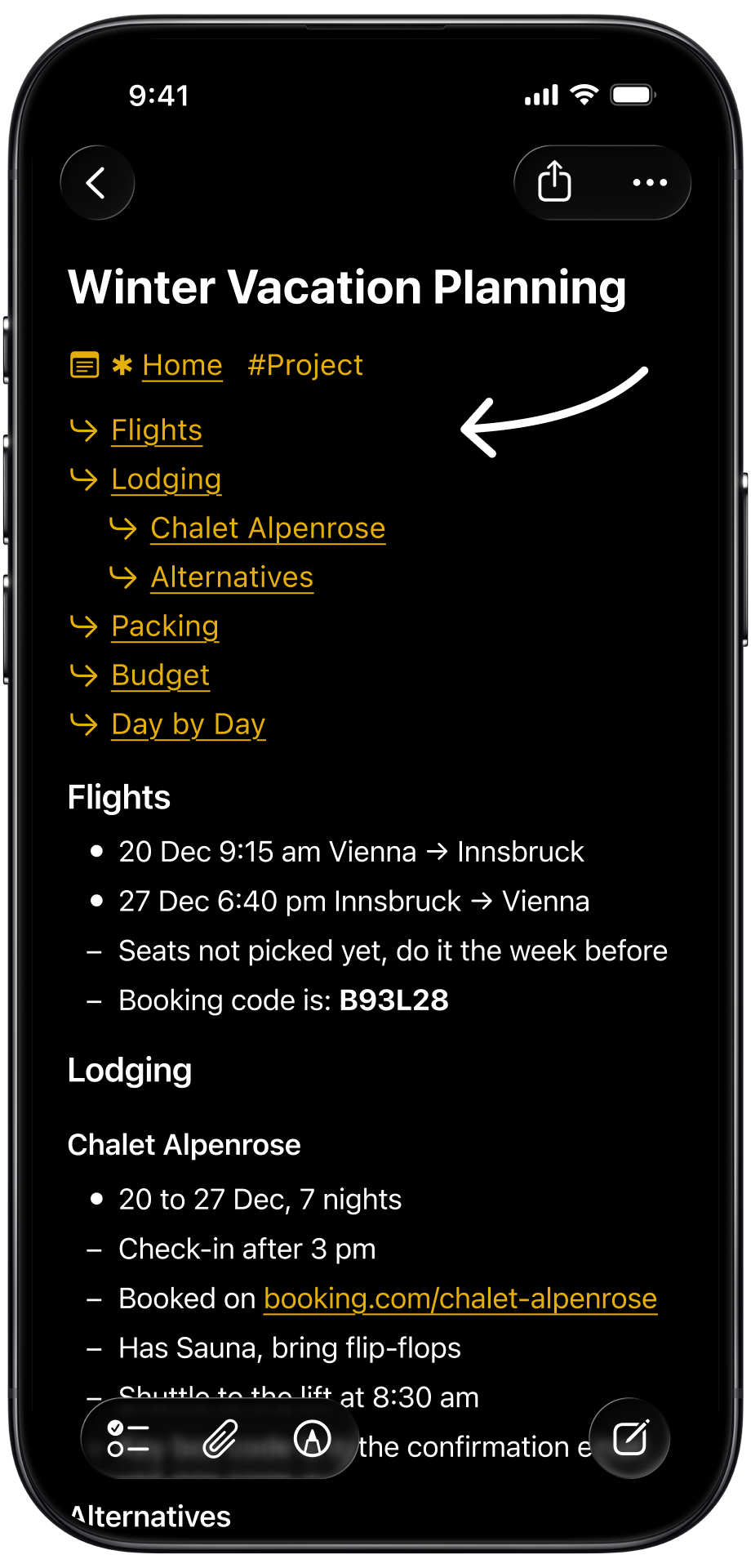
Some notes grow. A project note starts with a few lines and ends up with seven sections, some of them fifteen lines long, and a lot of scrolling. Winter Vacation Planning is one of mine: Flights, Lodging with two options under it, Packing, Budget, Day by Day.
So the note now starts with a short list under the title, one section name per line, the two lodging options indented under Lodging. Each line is a section link to the heading further down. Open the note, tap a line, and you are in the section. On an iPhone this turns a long note into a short one, and the indent shows the shape of the note before you scroll.
For a note with more than four sections, the quick >> then / picker will not reach them all. So I build the block in two passes: type >>, pick the note I am in, type /, take any of the four sections, and repeat until I have seven links. Then long-press each link that points to the wrong place, choose Edit Link, and pick the right section. Inside the same note the link shows only the section name with just a small arrow icon in front, so the block stays short.
I do this only on notes I open often and a contents block on a note with two sections doesn’t make too much sense either.